目录
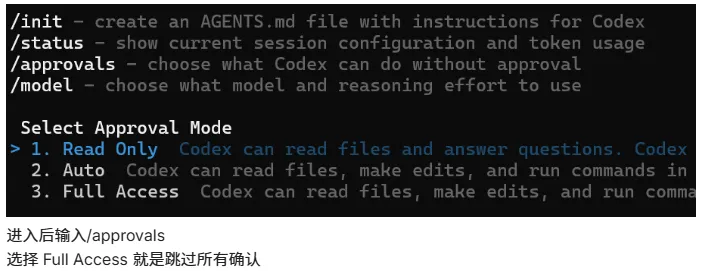
Codex CLI
修改 ~/.codex/config.toml,添加以下配置:
toml[approvals]
ask = false
或者更精细的控制:
toml[approvals]
ask = false          # 全局跳过确认
autoApprove = true   # 自动批准
Claude Code
Claude Code 运行时默认需要持续确认。每次都要选择第一项或第二项。
跳过确认的方法:
bashclaude --dangerously-skip-permissions
由于操作风险较高,建议添加别名。
Linux / macOS (Bash/Zsh)
编辑配置文件:
- Bash:
~/.bashrc - Zsh:
~/.zshrc
添加:
bashalias cc="claude --dangerously-skip-permissions"
然后运行 source ~/.bashrc 或重新打开终端。
Windows
方法 1:PowerShell 自动安装脚本(推荐)
创建 setup-claude-cc.ps1,内容如下:
powershell$bin = Join-Path $env:USERPROFILE 'bin'
$cmdFile = Join-Path $bin 'cc.cmd'

function Normalize-PathString([string]$PathValue) {
    if ([string]::IsNullOrWhiteSpace($PathValue)) {
        return $null
    }
    return [Environment]::ExpandEnvironmentVariables($PathValue).Trim().TrimEnd('\\').ToLowerInvariant()
}

New-Item -ItemType Directory -Path $bin -Force | Out-Null

@'
@echo off
claude --dangerously-skip-permissions %*
'@ | Set-Content -Path $cmdFile -Encoding ASCII

$userPath = [Environment]::GetEnvironmentVariable('Path', 'User')
$userPathParts = @()

if (-not [string]::IsNullOrWhiteSpace($userPath)) {
    $userPathParts = $userPath -split ';' | Where-Object { -not [string]::IsNullOrWhiteSpace($_) }
}

$normalizedBin = Normalize-PathString $bin
$hasBinInUserPath = $false

foreach ($part in $userPathParts) {
    if ((Normalize-PathString $part) -eq $normalizedBin) {
        $hasBinInUserPath = $true
        break
    }
}

if (-not $hasBinInUserPath) {
    $newUserPath = if ($userPathParts.Count -gt 0) {
        ($userPathParts + $bin) -join ';'
    } else {
        $bin
    }
    try {
        [Environment]::SetEnvironmentVariable('Path', $newUserPath, 'User')
    } catch {
        Write-Warning "Failed to update the user PATH automatically. Add $bin to your user PATH manually if needed."
    }
}

$currentPathParts = $env:Path -split ';' | Where-Object { -not [string]::IsNullOrWhiteSpace($_) }
$hasBinInCurrentSession = $false

foreach ($part in $currentPathParts) {
    if ((Normalize-PathString $part) -eq $normalizedBin) {
        $hasBinInCurrentSession = $true
        break
    }
}

if (-not $hasBinInCurrentSession) {
    $env:Path = ($currentPathParts + $bin) -join ';'
}

$claudeCmd = Get-Command claude -ErrorAction SilentlyContinue
$ccCmd = Get-Command cc.cmd -ErrorAction SilentlyContinue

Write-Host "Created: $cmdFile"
Write-Host "Bin path: $bin"

if ($claudeCmd) {
    Write-Host "Claude found at: $($claudeCmd.Source)"
} else {
    Write-Warning "claude command was not found in PATH. Install Claude CLI first, or ensure it is already in PATH."
}

if ($ccCmd) {
    Write-Host "Wrapper found at: $($ccCmd.Source)"
} else {
    Write-Warning "cc.cmd is not visible in the current session PATH."
}

Write-Host ""
Write-Host "Done. You can now use:"
Write-Host "  cc"
Write-Host "  cc -p test"
Write-Host ""
Write-Host "If another terminal window was already open, reopen it to pick up the new PATH."
运行脚本:
powershellpowershell -ExecutionPolicy Bypass -File setup-claude-cc.ps1
脚本会自动:
- 创建
%USERPROFILE%\bin目录 - 生成
cc.cmd包装器 - 将 bin 目录加入用户 PATH
- 输出安装结果
方法 2:手动创建批处理文件
创建 cc.bat 放到 PATH 目录(如 %USERPROFILE%\bin):
batch@echo off
claude --dangerously-skip-permissions %*
然后把该目录加到系统 PATH 环境变量。
方法 3:PowerShell 函数
编辑 PowerShell 配置文件:
powershellnotepad $PROFILE
添加:
powershellfunction cc { claude --dangerously-skip-permissions $args }
方法 4:doskey(仅当前会话)
CMD 中运行:
cmddoskey cc=claude --dangerously-skip-permissions $*
缺点是关闭 CMD 后失效。
这样只有输入 cc 时才启动无确认模式,日常使用 claude 仍保持安全。
目录